A Chin (Falam) writing assistant
WriteInChin
The spell checker Chin (Falam) never had, in an editor built around the way the language is actually written.
Every word processor in the world will underline your Chin (Falam) in red and offer you nothing. This one knows the difference between tha and ṭha, puts ṭ a keypress away, and keeps your documents on your own device.

What it does
Six tools, one document.
Write
A calm editor with direct ṭ and Ṭ entry on every surface, a focus mode, and autosave that tells you when it fails instead of pretending.
Check
Spelling, spacing, and the confusions that matter in Chin (Falam) — tha and ṭha, repeated words, missing diacritics — with accept or ignore on each one.
Rewrite
Save a passage, a tone and an instruction, and compare the result against your original before you accept anything.
Dictate
Speak instead of typing, with pause and resume, an ordered transcript, and retry or discard before a word reaches your document.
Look it up
A Chin (Falam) dictionary in the editor — offline on mobile — with source-attributed articles and example phrases.
Kept on your device
Documents, versions and history live in your own browser or phone. There is no account, and nothing is uploaded to us.
Built on our own Chin (Falam) stack.
The checks are not a generic spell checker pointed at Chin. They come from the components we build for Chin (Falam): context checks from falam-grammar, diacritic restoration from falam-restore, a falam-langid guard that steps aside on English and Burmese lines, and suggestions ranked from falam-lexicon.
See the language technologyGet WriteInChin
Wherever you write.
The same Chin checks on the web, on your phone, and inside Microsoft Word. All free.

New · Word add-in
WriteInChin for Word
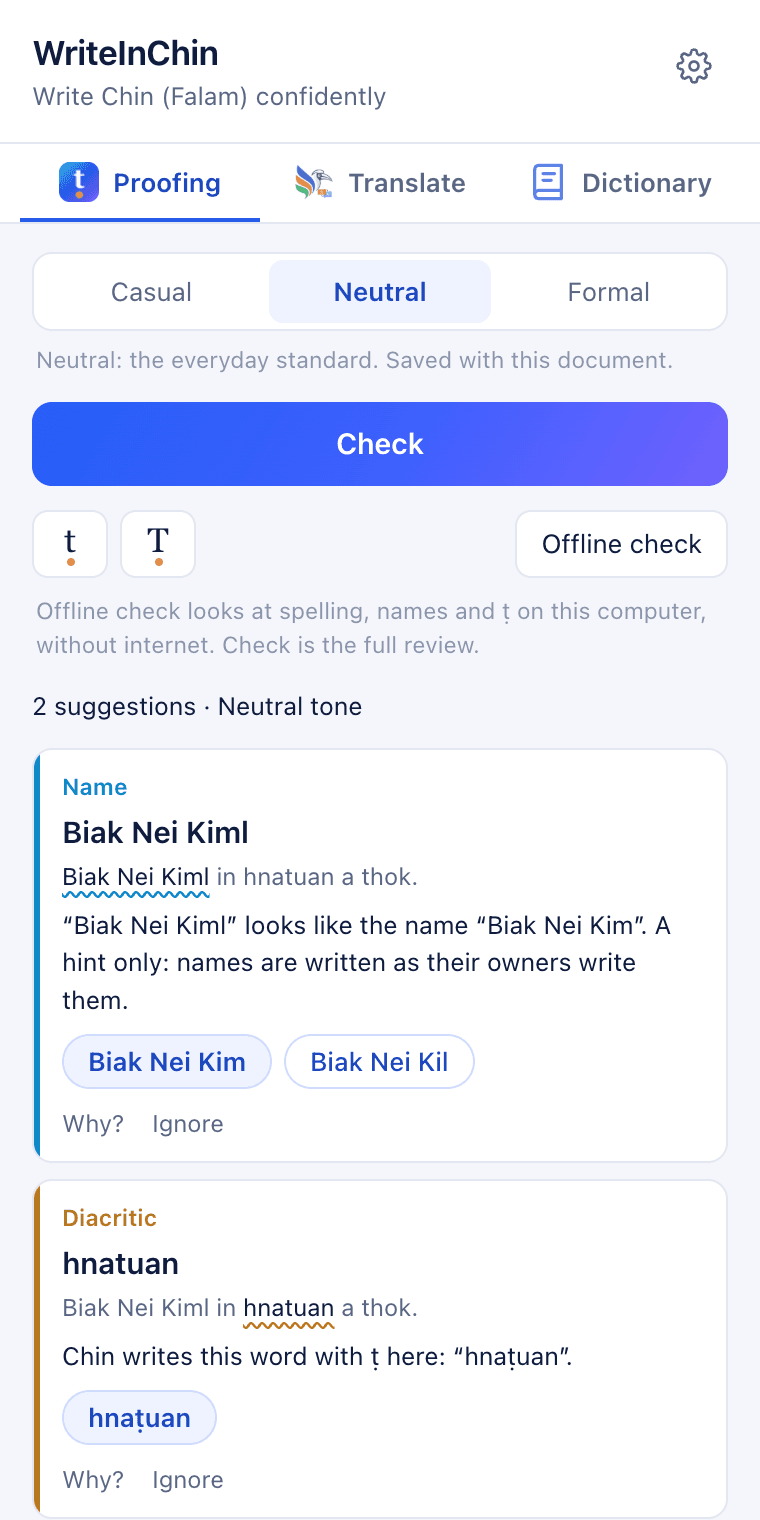
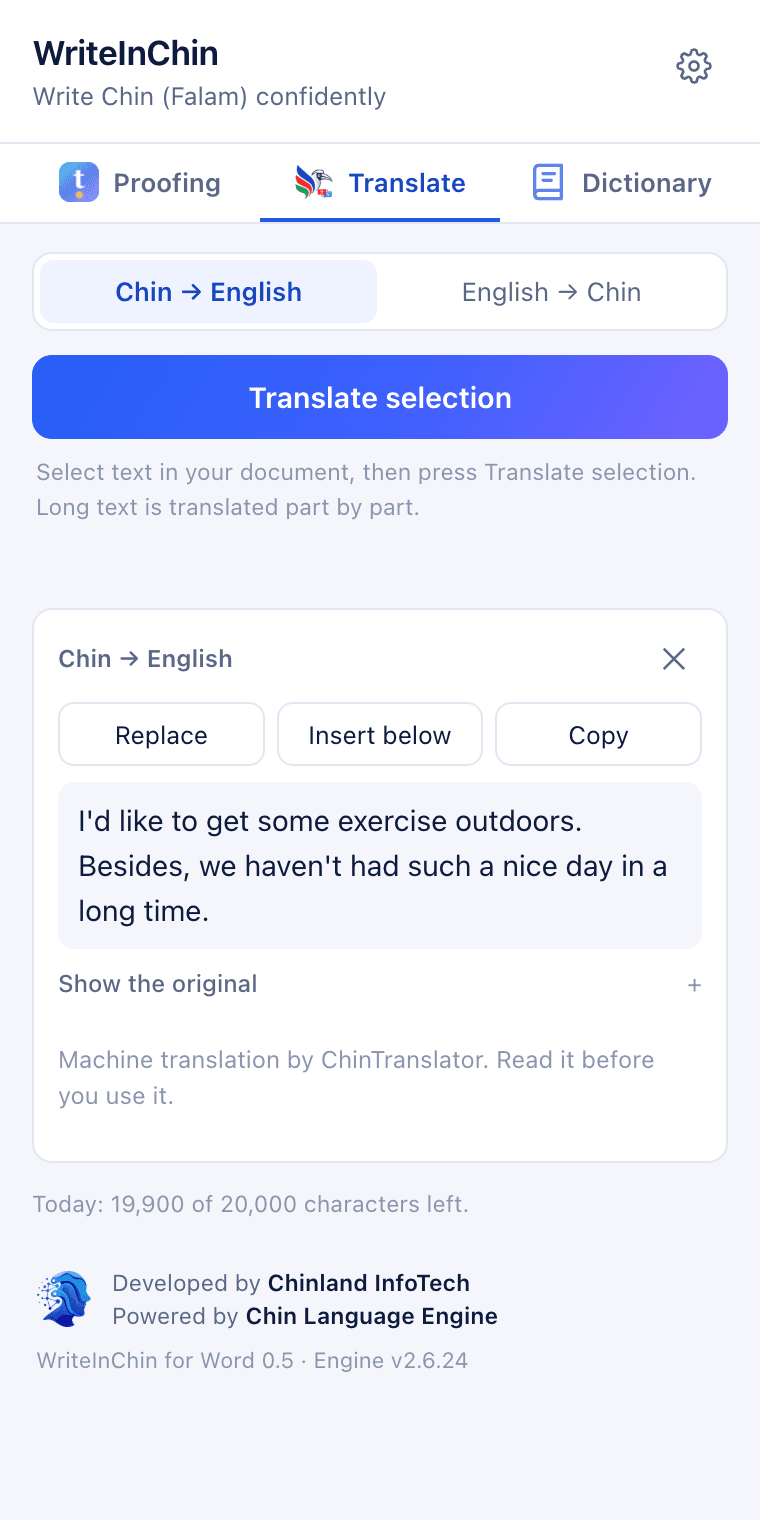
Write Chin (Falam) confidently in the documents you already use. One WriteInChin button in Word opens a pane with Proofing, Translate and Dictionary.
Proofing
Standard forms, ṭ, spacing, names and tone, from the same Chin Language Engine as the app. Click a suggestion and it changes that word in your document.
Translate
Select text, choose Chin → English or English → Chin, then replace it, insert the translation below, or copy it. Machine translation by ChinTranslator.
Dictionary
Select a word, or type one, and see its meanings and examples, Chin → English and English → Chin.
ṭ keys and an offline check
Type ṭ and Ṭ with one click. Offline check looks at spelling, names and ṭ on your computer when you have no internet.
Free. Word 2019 or later, Microsoft 365, or Word on the web. Proofing, Translate and Dictionary need an internet connection; the offline check and the word list do not.
Add it to Word
Once, on each computer. After that the WriteInChin button stays on the Home tab, and updates arrive by themselves.
Word on the web
Works on any computer. Sign in with a free Microsoft account.
- 1Download the add-in file with the button above.
- 2Go to office.com, sign in, and open a Word document.
- 3On the Home tab, choose Add-ins, then More Add-ins.
- 4Open My Add-ins, choose Upload My Add-in, and pick the file you downloaded.
- 5The WriteInChin button appears on the Home tab. Click it to open the pane.
Word for Mac
Microsoft 365 or Word 2019 and later.
- 1Download the add-in file with the button above, and quit Word.
- 2In Finder, choose Go, then Go to Folder, and paste the folder below (make a folder named wef there if it is missing):
~/Library/Containers/com.microsoft.Word/Data/Documents/wef - 3Move the downloaded file into that folder.
- 4Open Word and a document, then choose Insert, Add-ins, My Add-ins.
- 5Under Developer Add-ins, choose WriteInChin.
Word for Windows
Two ways. No OneDrive needed for the Word app.
In your browser (quickest)
- 1Open word.office.com in Edge or Chrome and follow the steps for Word on the web.
In the Word app on your PC
- 1Make a folder named WriteInChin on your C: drive and put the downloaded file in it.
- 2Right-click the folder, choose Properties, then the Sharing tab, and click Share, then Share again. Copy the network path it shows, such as \\YOUR-PC\WriteInChin.
- 3In Word, choose File, Options, Trust Center, Trust Center Settings, then Trusted Add-in Catalogs. Paste the path into Catalog Url, click Add catalog, tick Show in Menu, and click OK. Close Word.
- 4Open Word and a document. On the Home tab, choose Add-ins, then More Add-ins, then Shared Folder.
- 5Choose WriteInChin and click Add. The WriteInChin button appears on the Home tab.
The Chin word list is 62,000 correctly spelled Chin words, without meanings: with it, Word stops underlining correct Chin words and still underlines misspelled ones, even without the add-in. Add the downloaded file in Word (Word calls it a custom dictionary): on Windows, File → Options → Proofing → Custom Dictionaries → Add; on a Mac, Word → Preferences → Spelling & Grammar → Dictionaries → Add. Word on the web cannot use word lists.
For a whole organisation (a church office or a school), your Microsoft 365 administrator can add WriteInChin for everyone at once in the Microsoft 365 admin center, under Integrated apps, with the same file.
Your writing stays yours.
Documents are stored on your device, not on our servers. Our service keeps no document text at all — only an installation identifier and the counters that meter dictation. There is no account and no advertising.
Support
Need help with WriteInChin?
Email us and a person will read it. A wrong suggestion is worth reporting — it is how the Chin (Falam) checks get better.
admin@chinlandinfotech.comWe aim to reply within a few working days.
What to include
- Whether you were on the web, Android, iPhone or in Word, and the app version.
- The sentence as you wrote it, and what the checker said about it.
- What you expected the correct Chin (Falam) to be.
- For a dictation problem, whether it was capture, transcription or insertion.
For a privacy or deletion request, write “WriteInChin privacy request” in the subject line — see the privacy policy.